Get started with qlik-embed in Svelte
Embed your first Qlik visualization in a Svelte app in minutes using the @qlik/embed-svelte package and OAuth2 single-page application authentication.
Prerequisites
- A Qlik Cloud tenant with at least one Analytics app and visualization
- Node.js 24 or later
- An OAuth2 SPA client with:
- Scope:
user_default - Redirect URI:
http://localhost:5173/oauth-callback.html - Allowed origin:
http://localhost:5173
- Scope:
If your dev environment uses a different port than 5173, update the redirect URI and allowed origin accordingly.
Step 1: Create a new Svelte app
- Generate a new Svelte project with TypeScript and Vite:
npm create vite@latest my-minimal-qlik-svelte-app -- --template svelte-ts- Navigate into the project and install dependencies:
cd my-minimal-qlik-svelte-appnpm installStep 2: Add @qlik/embed-svelte to the project
Run the following command:
npm install @qlik/embed-svelteStep 3: Create the OAuth callback page
In this example, you need a dedicated callback page that handles the OAuth2 redirect after login. When a user authenticates with Qlik Cloud, the OAuth provider redirects back to this page, which securely exchanges the authorization code for an access token.
Create oauth-callback.html in your project root:
<!DOCTYPE html><html lang="en"> <head> <meta charset="utf-8" /> <script crossorigin="anonymous" type="application/javascript" data-host="https://your-tenant.us.qlikcloud.com" src="https://cdn.jsdelivr.net/npm/@qlik/api@2/oauth-callback.iife.js" ></script> </head></html>Replace https://your-tenant.us.qlikcloud.com with your Qlik Cloud tenant URL.
Step 4: Update the vite configuration
Configure Vite to serve both your app and the OAuth callback page.
Replace the contents of vite.config.ts:
import { svelte } from "@sveltejs/vite-plugin-svelte";import { resolve } from "path";import { defineConfig } from "vite";
export default defineConfig({  plugins: [svelte()],  build: {    rollupOptions: {      input: {        index: resolve(__dirname, "index.html"),        "oauth-callback": resolve(__dirname, "oauth-callback.html"),      },    },  },});
Step 5: Set up default host configuration
Set up a default host configuration in your main entry point.
Replace the contents of src/main.ts:
import { mount } from 'svelte'import { importRuntimeModule } from "@qlik/runtime-module-loader";import type { HostConfig } from "@qlik/embed-runtime/auth";import "./app.css";import App from "./App.svelte";
const hostConfig: HostConfig = {  host: "https://your-tenant.us.qlikcloud.com",  clientId: "<CLIENT_ID>",  redirectUri: "http://localhost:5173/oauth-callback.html",  autoRedirect: true,};
// Set the default host config for all embed componentsimportRuntimeModule("auth@v1", hostConfig).then((authModule) => {  authModule.setDefaultHostConfig(hostConfig);});
const app = mount(App, {  target: document.getElementById('app')!,})
export default app
Replace placeholders:
host: Your Qlik Cloud tenant URLclientId: Your OAuth client ID
Step 6: Update src/App.svelte
Replace the default src/App.svelte file with code that imports the QlikEmbed component and displays your
visualization:
<script lang="ts">  import QlikEmbed from "@qlik/embed-svelte";</script>
<main>  <h1>Embedded Chart</h1>  <div class="chart-container">    <QlikEmbed      ui="analytics/chart"      appId="<APP_ID>"      objectId="<OBJECT_ID>"    />  </div></main>
<style>  .chart-container {    width: 500px;    height: 500px;  }</style>
Replace placeholders:
appId: Your app IDobjectId: Your visualization ID
Step 7: Start the development server
- Run the following command:
npm run devIf Vite runs on a different port (check the terminal output), update your
OAuth client configuration and the redirectUri in your code to match.
For example, if the server runs on http://localhost:5174, update all
references accordingly.
-
Open your browser to
http://localhost:5173. -
The browser redirects you to the Qlik Cloud login page. Log in with your credentials.
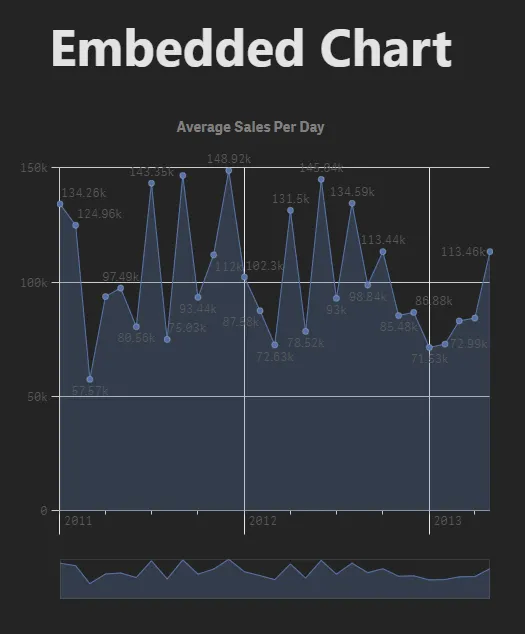
After logging in, a chart loads displaying data from your app.
Troubleshooting
- OAuth errors: Verify
redirectUrimatches your OAuth client config andoauth-callback.htmlis in your project root - Chart not showing: Verify
appIdandobjectIdare correct and you have permissions in Qlik Cloud - Module errors: Run
npm install @qlik/embed-svelte
Next steps
Now that you have a working embed:
- Explore other UI types (
analytics/sheet,analytics/selections) - Add more charts and visualizations to your app
- Implement interactivity using the
refApi - Deploy to production (update OAuth configuration with your production domain)
For complete qlik-embed documentation, see qlik-embed.